Tutorial: first figure (15 min)¶
Which entry point: this starts from an arranged data bundle (a table +
metadata.yaml): Case B. If you have plotting code you wrote, see Case A; if you only have a capture or description of the figure you want, see Case C (guide, chapter 5).
You make one two-panel figure from start to finish with the example data in the repository, without writing a line of code. With commands you create a project, attach data bundles, build, and fix the problem the print check (preflight) reports by changing only the config.
tests/test_tutorials.py runs this page's commands and config edits as written, in CI. So following this page gives the same result.
Before you start¶
Create and activate the environment as in the README's installation section (conda activate fig-atlas), and start at the repository root. When fa --help lists the commands, you are ready.
The example data are in examples/: two bundles made by simulation (not measurements).
| Bundle | Content | Shape of figure (plot_type) |
|---|---|---|
examples/dose_response |
Cell viability for 3 compounds × 7 doses × 4 replicates | line with error band (line_band) |
examples/screen_hits |
Effect size and adjusted P for 400 items | effect versus significance scatter (threshold_scatter) |
1. Create the project¶
First see what would be created (--dry-run writes nothing).
fa new project first-figure --dry-run
It says three files will be created: the config, the analysis script and the figure spec (plus a line of the VS Code build list, in a repository that has .vscode/tasks.json). Now create them.
fa new project first-figure
Give a research unit, as in --domain lab --category exploratory, and the project goes under configs/lab/exploratory/. This tutorial is practice, so it stays at the root.
2. Check the data bundles¶
A bundle is a folder of inputs/data.csv (the table) and metadata/metadata.yaml (which figure it is, and its plot_params). Before drawing, check its contract (that the columns it needs are there).
fa bundle check examples/dose_response examples/screen_hits
For each bundle you get the result, which figure it is (plot_type), the contract it matches, the renderer that draws it and its number of rows.
ok           examples/dose_response
    plot_type line_band -> contract core.line_band, renderer fig_atlas.renderers:render_line_band, 84 rows
ok           examples/screen_hits
    plot_type threshold_scatter -> contract core.threshold_scatter, renderer fig_atlas.renderers:render_threshold_scatter, 400 rows
Both bundles are ok and match the contracts core.line_band and core.threshold_scatter. If something is wrong, the numbers of errors or warnings replace ok, with what is missing below. Generic figures name their columns in plot_params (e.g. x_col: dose_uM), and the checker sees whether the named columns exist (table bundle contract).
3. Attach the bundles as panels¶
fa ingest bundle examples/dose_response --project first-figure
fa ingest bundle examples/screen_hits --project first-figure
Each command writes one block under plots: in configs/config_first-figure.yaml and builds. The block holds every parameter the renderer reads, each with an explaining comment; values from the bundle are marked "(from the bundle)". From now on this file is where you adjust the figure. You do not need to open any Python code.
4. Build and check¶
fa build first-figure --preflight
The figure is at outputs/first-figure/figures/figure_01_main/figure_01.png (and PDF and SVG). It is drawn at its printed size, on the A4 text width (184.6 mm), and the tags of panels a and b sit on each panel's outer edge (tick labels and axis titles included).
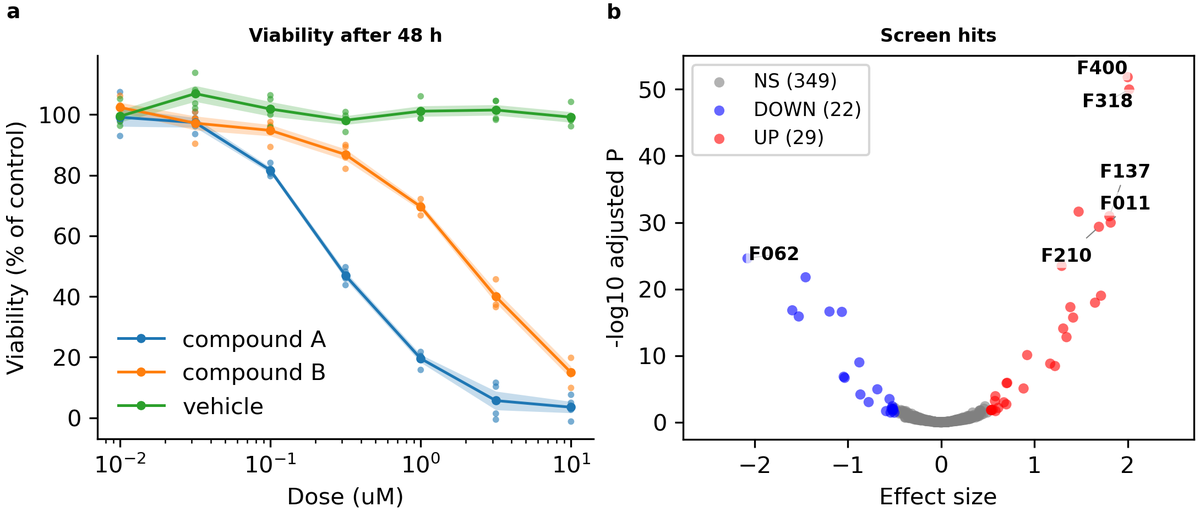
--preflight is the print check. The output reads:
==== first-figure ====
[provenance] 1 figure record(s) written
  Published Figure 1: Title of figure 1 (one sentence: what it shows)
Manifest: outputs/first-figure/manifests/clean_atlas_manifest.csv
[ok] first-figure: 0 error(s), 1 warning(s)

Report: outputs/preflight/preflight_findings.csv  (overlays: outputs/preflight/<project>/)
  warn  cvd_indistinct               1
PASS: 4/5 checks passed, 1 warning(s) - outputs/first-figure/manifests/clean_atlas_verification.csv
  WARN [preflight] warnings: 1 preflight warning(s); see outputs/first-figure/manifests/preflight.csv

ALL 1 PROJECT(S) PASSED
Line by line:
[provenance] 1 figure record(s) written: a record of which data, code and settings made the figure.Published Figure 1: Title of figure 1 ...: the figure is published tofigure_01_main/. The title is still the template's sentence; you write it in step 6.[ok] first-figure: 0 error(s), 1 warning(s): the print check's result. An error (overlap, clipping, text too small, ...) makes the build fail. A warning recommends a fix but does not stop the build, and an info is for reference.warn cvd_indistinct 1: the kind and number of warnings. The details are inoutputs/first-figure/manifests/preflight.csv.PASS: 4/5 checks passed, 1 warning(s): the check of what was published. Of five items — three figure files (PNG, PDF, SVG), the README and the preflight result — the preflight result has a warning, hence 4/5.ALL 1 PROJECT(S) PASSED: the build as a whole succeeded.
preflight.csv describes the warning like this:
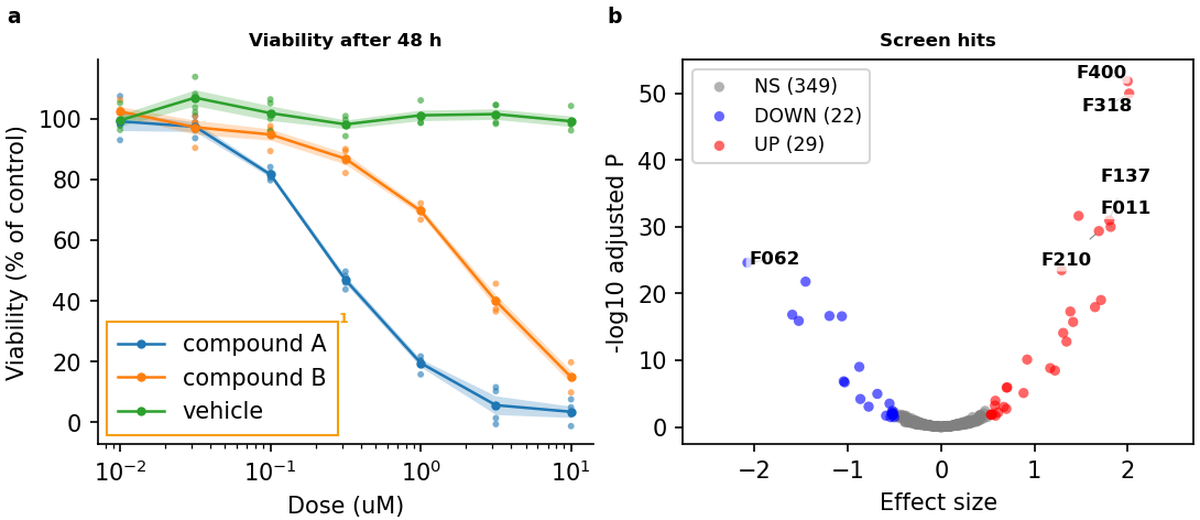
warn cvd_indistinct legend of axes[0] 'Viability after 48 h': #ff7f0e and #2ca02c look alike with protanomaly
It means panel a's orange and green look almost the same to readers with red weakness. Where the problem is, a numbered mark on the overlay picture in outputs/preflight/first-figure/ shows: box 1 of this warning points to panel a's legend.
5. Fix it in the config¶
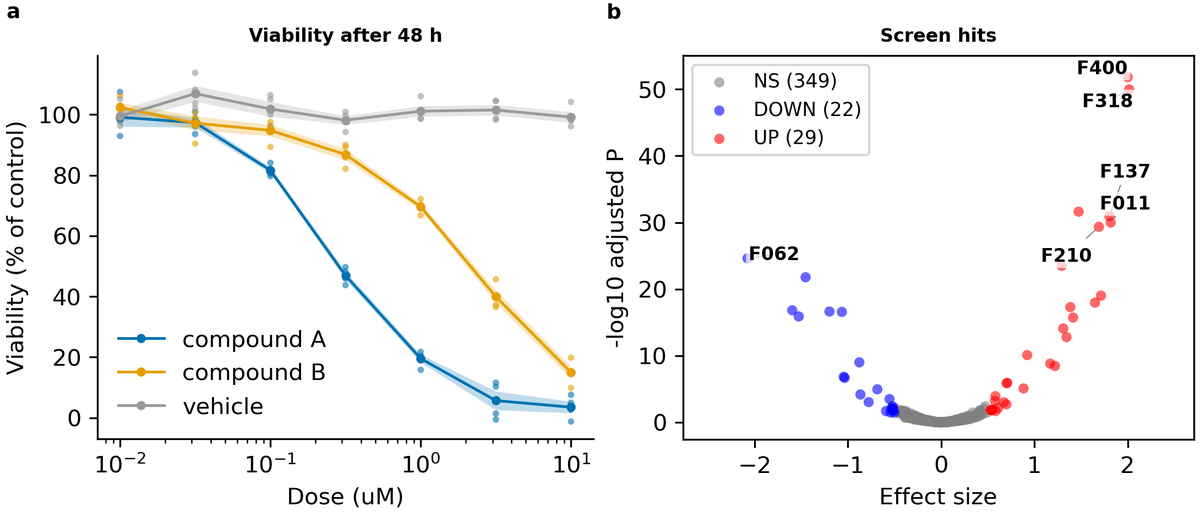
In configs/config_first-figure.yaml, find the group_colors line of the dose_response block. Its comment says what the key does ("Colour per group"). Change it to the Okabe–Ito palette, safe for colour-blind readers.
    group_colors:                      # Colour per group: Okabe-Ito, safe for colour-blind readers
      "compound A": "#0072B2"
      "compound B": "#E69F00"
      vehicle: "#999999"
Build again.
fa build first-figure --preflight
This time it passes without warnings (0 error(s), 0 warning(s)). The three colours of panel a are now blue, orange and grey, which colour-blind readers can tell apart. No Python code was touched; one block of the config changed.
Other values — text sizes, axis ranges, thresholds, the number of labels — change the same way. Each key's comment gives its unit and which way to adjust it. To see where a value came from, use fa param explain first-figure plots.dose_response.band_alpha and the like.
6. Write the figure's description¶
The figure spec (figure_specs/figure_01_first-figure.py) holds the figure's title, the panel notes and what the figure may claim. The build writes them into the figure folder's README.md. Change the title:
title="Two compounds lower viability with dose; a screen finds 51 hits",
fa build first-figure --preflight
The title in the figure folder's README.md changes, and the check stays at 0 error(s), 0 warning(s). Build without --preflight and you get a warning that the last check is older than the figure (preflight results are older than the published figures): once the figure changes, check it again.
In a real figure, a result number such as "51" is not typed by hand. The analysis script records it with
claims.record("n_hits", n)and the text says{n_hits}, so the description follows the data when they change (AGENTS.md §4.5).
Next¶
- With your data: put bundles of the same shape under
raw_data/<study>/<project>/and use the same commands. The supported figures and their column rules are infa bundle contractsand the contracts. - Into the paper: promote an exploratory project to a paper Figure with
fa promote <project> --figure 1 --slug <slug>. - Image figures: the microscopy tutorial
- With an AI agent: an agent can do the same with MCP tools (how to connect). At each step that changes files, it shows the diff first.
- Cleaning up: to remove the practice project, delete the three files it created (
configs/config_first-figure.yaml,analysis/first-figure_analysis.py,figure_specs/figure_01_first-figure.py) andoutputs/first-figure/. In a repository with a VS Code build list, also remove its name from.vscode/tasks.json.