Tutorial: port a script you wrote (Case A)¶
A figure has three entry points, depending on what you have (guide, chapter 5): an arranged data bundle is Case B (first figure), plotting code you wrote plus its data is Case A, and only a capture or description of the figure you want is Case C. This page shows Case A through one example, from start to finish.
The example is a student's qPCR bar chart script: the common kind, with every text size, colour and axis range written into the code. Porting it has two parts.
- Script → data bundle: reading the code and taking its values out. It takes judgement, so an AI assistant usually does it. This page shows the result and explains what went where.
- Bundle → figure: a few commands, which you run yourself.
tests/test_tutorials.pyruns this part as written in CI, and also checks that the ported figure shows the same content as the original (bar heights, error bars, dots, colours, order, axis range, text).
The example files are in examples/case_a/. The data are simulated values.
1. The starting point: the script and its figure¶
# plot_qpcr.py -- qPCR of four antioxidant genes after H2O2 (a student's script)
#
# Case A example of fig-atlas (docs/tutorials/case_a_port_script.md): the kind
# of script a figure starts from -- every size, colour and limit typed into the
# code. The data in qpcr_results.csv are synthetic, not measurements.
#
#   python plot_qpcr.py        -> qpcr_antioxidant.png
import numpy as np
import pandas as pd
import matplotlib.pyplot as plt

df = pd.read_csv("qpcr_results.csv")

genes = ["Hmox1", "Nqo1", "Gclm", "Txnrd1"]
conditions = ["vehicle", "H2O2"]
colors = {"vehicle": "#9CA3AF", "H2O2": "#D55E00"}

fig, ax = plt.subplots(figsize=(6, 4))
width = 0.4
x = np.arange(len(genes))
for i, cond in enumerate(conditions):
    sub = df[df["condition"] == cond]
    means = [sub.loc[sub["gene"] == g, "fold_change"].mean() for g in genes]
    sems = [sub.loc[sub["gene"] == g, "fold_change"].sem() for g in genes]
    pos = x + (i - 0.5) * width
    ax.bar(pos, means, width * 0.9, yerr=sems, capsize=3, color=colors[cond], label=cond)
    for j, g in enumerate(genes):
        vals = sub.loc[sub["gene"] == g, "fold_change"]
        ax.scatter(np.full(len(vals), pos[j]), vals, s=15, color="black", zorder=3)

ax.set_xticks(x)
ax.set_xticklabels(genes, fontsize=11)
ax.set_xlabel("Gene", fontsize=12)
ax.set_ylabel("Fold change (vs vehicle)", fontsize=12)
ax.set_title("Antioxidant genes after H2O2", fontsize=14)
ax.set_ylim(0, 6)
ax.legend(frameon=False, fontsize=10)
plt.tight_layout()
plt.savefig("qpcr_antioxidant.png", dpi=300)
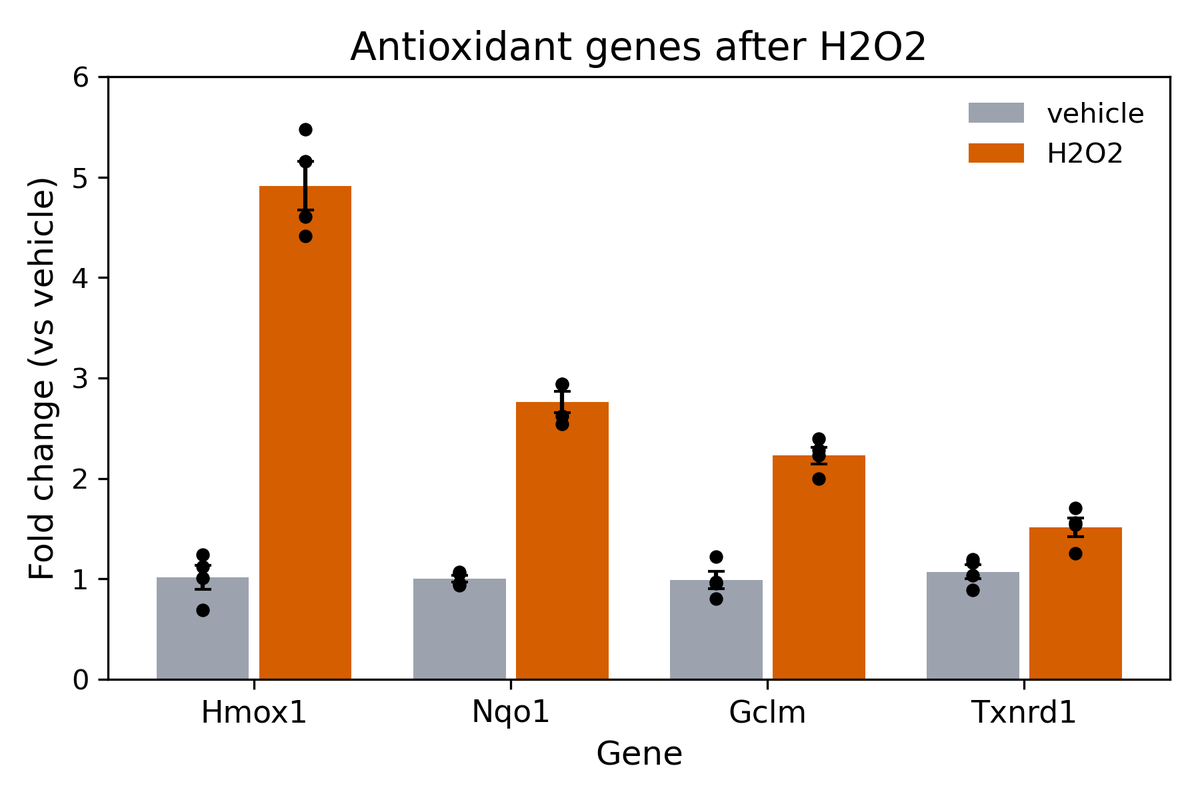
Why this figure is hard to use as it is: changing a text size means changing the code, you cannot tell how small the text will get at journal size, and nothing records how data, code and figure are linked.
2. Script → bundle (the AI assistant's part)¶
You tell the AI assistant:
"Bring the figure drawn by
examples/case_a/original/plot_qpcr.pyandqpcr_results.csvinto fig-atlas (Case A). Make a new project calledqpcr-antioxidant."
The AI splits the code into reading the data, the figure's values and drawing, then:
- It moves the data unchanged.
qpcr_results.csvis copied to the bundle'sinputs/data.csv, without changing a single character (AGENTS.md §1.1). - It finds a renderer that draws this shape. Grouped bars with replicate dots are drawn by the existing
bar_scatter(gallery). If there were none, it would make one (section 6 below). - It moves the values written in the code into the bundle's
plot_params, commenting each line with the code it came from.
The result is examples/case_a/qpcr_bundle/. Its metadata/metadata.yaml:
# Case A example (docs/tutorials/case_a_port_script.md): the bundle made from
# examples/case_a/original/plot_qpcr.py. inputs/data.csv is qpcr_results.csv,
# copied unchanged; every value the script typed into its code is a
# plot_params key here, with the line it came from. Synthetic data.
plot_type: bar_scatter
plot_params:
  # what is plotted
  category_col: gene                  # sub["gene"]: one group of bars per gene
  group_col: condition                # df["condition"]: one bar colour per condition
  value_col: fold_change              # "fold_change": bar height = mean, dots = replicates
  category_order: [Hmox1, Nqo1, Gclm, Txnrd1]          # genes = [...]
  group_order: [vehicle, H2O2]                         # conditions = [...]
  group_colors: {vehicle: "#9CA3AF", H2O2: "#D55E00"}  # colors = {...}
  # bars, error bars and dots
  bar_width: 0.8                      # width = 0.4 per bar, two bars per gene
  errorbar: sem                       # yerr=sems (.sem(): standard error)
  capsize: 3                          # capsize=3
  point_size: 15                      # scatter(..., s=15)
  point_color: "#000000"              # color="black"
  point_edgecolor: none               # (no outline)
  point_edgewidth: 0
  point_jitter: 0                     # dots on the bar centre, no jitter
  # axes and text
  y_min: 0                            # set_ylim(0, 6)
  y_max: 6
  labels_title: "Antioxidant genes after H2O2"         # set_title(...)
  title_size: 14                      # fontsize=14
  title_weight: normal                # (matplotlib's default title weight)
  labels_xlabel: Gene                 # set_xlabel("Gene", fontsize=12)
  labels_ylabel: "Fold change (vs vehicle)"            # set_ylabel(..., fontsize=12)
  axes_label_size: 12
  axes_label_weight: normal
  tick_label_size: 11                 # set_xticklabels(genes, fontsize=11)
  legend_loc: best                    # legend() places it itself
  legend_fontsize: 10                 # legend(fontsize=10)
  legend_frameon: false               # legend(frameon=False)
  grid: false                         # (no grid lines)
  despine: false                      # (all four spines drawn)
  show_significance: false            # (no test in the script)
Three things to notice:
- Values the code did not write are written too. The script drew no grid lines and no bold title.
bar_scatter's defaults are the opposite, so keeping the original look needsgrid: falseandtitle_weight: normal. The first port aims to be identical to the original; what you want to change, you change in the config afterwards. - The calculation must be the same too. The script's
.sem()is the standard error with the sample standard deviation (n−1), anderrorbar: semis the same formula. - One thing does not come out the same. The script set only the x tick labels to 11 pt and left the y tick labels at the default (10 pt);
tick_label_sizeapplies to both axes. The AI reports differences like this, and the researcher decides whether to accept them.
3. Bundle → figure (do it yourself)¶
From here you follow along. At the repository root, create the project and copy the bundle under raw_data/.
fa new project qpcr-antioxidant
mkdir -p raw_data/qpcr-antioxidant
cp -r examples/case_a/qpcr_bundle raw_data/qpcr-antioxidant/
fa bundle check raw_data/qpcr-antioxidant/qpcr_bundle
It says ok and plot_type bar_scatter -> contract core.bar_scatter. Attach the bundle to the project and build.
fa ingest bundle raw_data/qpcr-antioxidant/qpcr_bundle --project qpcr-antioxidant
fa build qpcr-antioxidant --preflight
You should get [ok] qpcr-antioxidant: 0 error(s), 0 warning(s) and PASS: 5/5 checks passed. fa ingest bundle adds the rest of the renderer's parameters to the bundle's values and writes the block, with explaining comments, into configs/config_qpcr-antioxidant.yaml. From now on this file is where you adjust the figure.
4. Compare with the original¶
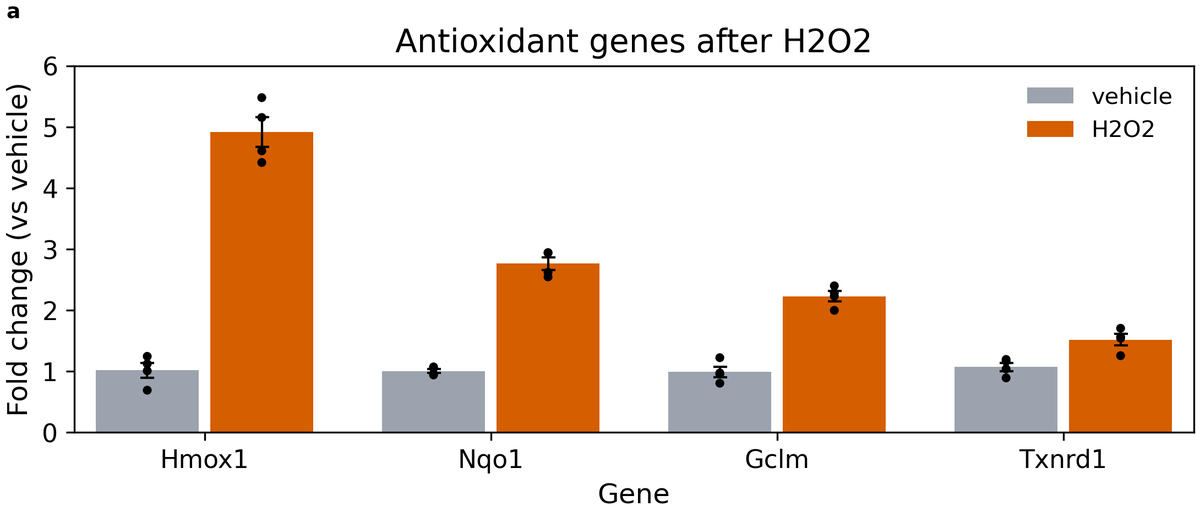
The bar heights, error bars, dots, colours, the order of genes and conditions, the axis range (0–6), the title, the axis names and the legend are the same. Two things differ, both on purpose:
- Size: the original was 6 × 4 inches, for the screen. The ported figure is drawn at printed size on the project's page preset (the A4 text width). The height is set by
figures.height_mmin the config. - Panel tag
a: the tag used when panels are combined is added.
Now that the printed size of the text is fixed, to fit a journal you lower title_size, axes_label_size and tick_label_size in the config. There is no need to open the script again.
5. What went where¶
| In the script | Now |
|---|---|
qpcr_results.csv |
raw_data/qpcr-antioxidant/qpcr_bundle/inputs/data.csv (copied unchanged, read only) |
Every value of the figure (fontsize=, colors, set_ylim, capsize= …) |
plots.qpcr in configs/config_qpcr-antioxidant.yaml (each with its unit and explanation) |
| The loops drawing bars, dots and error bars | The renderer bar_scatter (shared with other projects, tested) |
plt.savefig("qpcr_antioxidant.png", dpi=300) |
fa build: PNG, PDF, SVG, the print check, the provenance record, a README |
| (nothing) | A record of which data, code and settings made the figure (figure_01.provenance.json) |
6. When no renderer draws this shape¶
If the shape is not in the gallery, a renderer has to be made, usually by the AI assistant again. The script's drawing part becomes the renderer, and every number becomes a parameter. If a close shape exists, start from it.
fa new renderer my_shape --from bar_scatter --plot-type my_shape
The new renderer goes in this project repository's renderers/, and other projects of the same repository use it too. The full process is in guide, chapter 5.
Without AI¶
You can do section 2 yourself: copy the data to inputs/data.csv, choose the renderer in the gallery, and write the code's values into metadata.yaml under the key names of the config reference. Then continue as in section 3. If a key name is wrong, fa lint qpcr-antioxidant suggests the close names.