6. Changing a figure: reading and writing the config
Has this ever happened to you? Asked to "make the panel titles the same size", you fixed the text one by one in a drawing program, and every fix was lost when the figure was redrawn with new data.
The key idea: every value of a figure is in one place, the config. Change a line and build again: the figure changes, and the change is not lost. Each line explains its value, so you know what to change without opening the program.
Reading one line of the config
The config is config_project-name.yaml under configs/. It is a text file you can open in Notepad or any text editor. A line looks like this:
title_size: 8.0 # Panel title size; pt
| Part | Meaning |
|---|---|
title_size |
The name of the value (do not change it) |
8.0 |
The value — change this |
after # |
The explanation: what it controls (Panel title size) and its unit (pt). Some lines also say what raising or lowering it does (e.g. lower for dense plots). |
The explanations are written by the program, and AI assistants read the same ones. Common words are listed in the table at the end of this chapter.
How the config is laid out
project:            # the project's name and style (printed size, A4 page) — rarely changed
paths:              # where the data and results are — rarely changed
figures:            # the whole figure: height, panels per row, gaps between panels, panel tag size
plots:              # one block per panel
  dose_response:    #   panel a: every value of the dose-response curve
  screen_hits:      #   panel b: every value of the screen's scatter
When a bundle is attached, the tool writes into its panel block every value that kind of figure uses. So this one file shows everything you can change in the figure.
Three special marks
| Mark | Meaning |
|---|---|
(from the bundle) |
The value came from the bundle's note. You may change it: the bundle stays as it is, and the config's value is used from now on. |
null |
"Not set = automatic". For example y_max: null fits the axis range to the data. Put a number and it is fixed to that. |
# at the start of a line |
A line that is switched off. A value marked (computed when unset) is worked out by the program when left empty. To set it yourself, remove the # and put a value. |
Example: fixing a warning and matching title sizes
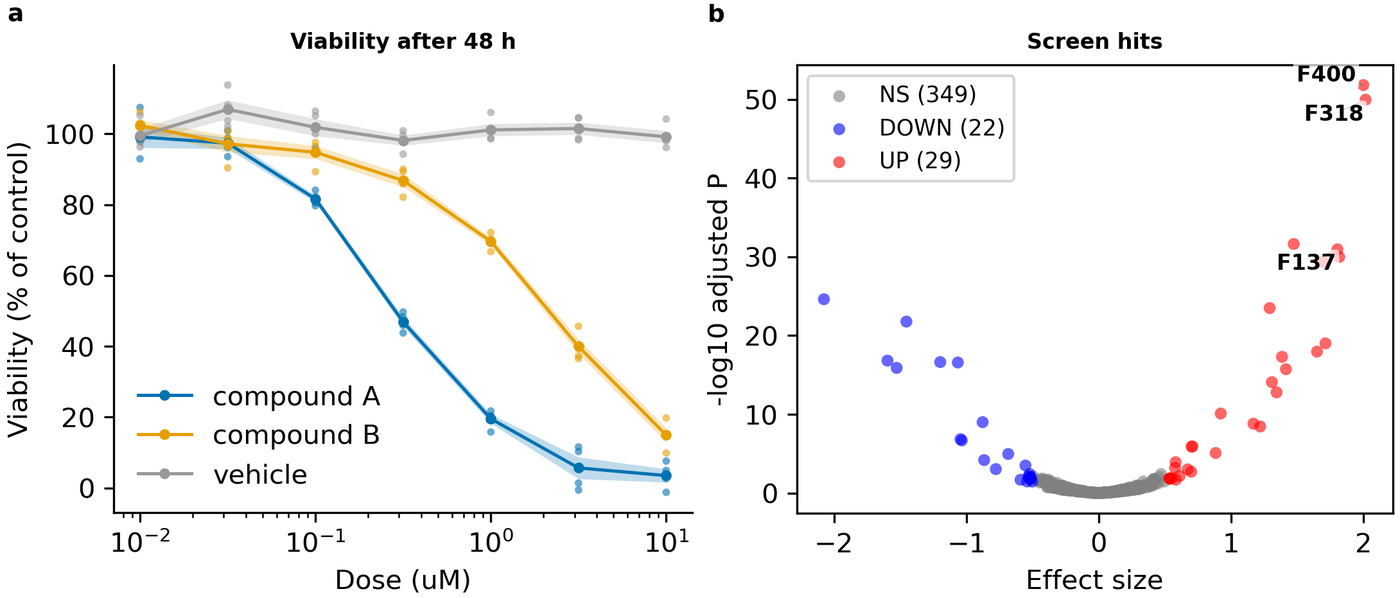
The figure of chapter 4 had two things to fix.
- Colour: the warning that the orange and green of panel a look alike to colour-blind readers.
- Consistency: panel a's title is 8 pt and panel b's 10 pt. Each kind of figure had its own default.
In the dose_response block:
    group_colors:                      # colour per group: Okabe–Ito colours, distinct for colour-blind readers too
      "compound A": "#0072B2"
      "compound B": "#E69F00"
      vehicle: "#999999"
In the screen_hits block:
    title_size: 8                      # Panel title font size; pt   ← from 10 to 8, as in panel a
    label_top_n: 3                     # Points labelled in top_n mode   ← from 6 labelled points to 3
The figure built again: panel a's colours changed, the two panels' titles are the same size, and panel b has fewer labels.
What you do
💬 Ask an AI:
"In first-figure, make panel b's title 8 pt like panel a's, and label only 3 points."
The AI first shows the lines it will change in the config. Check that those lines match what you asked, then tell it to go ahead. The AI changes only the values and never deletes the explaining comments (that is a rule).
✏ Editing it yourself: open the config in a text editor, change the value, save, and build again (💬 "build first-figure again" or ⌨ fa build first-figure).
💡 Tip (if you use VS Code): it colours the indentation of the config, which prevents mistakes, and after saving, Ctrl+Shift+B builds again at once.
💬 When you wonder where a value came from: ask "Where does the value of plots.dose_response.band_alpha in first-figure come from?" and you are told whether it is a default, comes from a style setting, or is set in this config.
Take care when editing
The config is in a format called YAML. Three things to keep:
| Take care | Example |
|---|---|
| Keep the indentation (leading spaces). The number of spaces says what a line belongs to. | Delete the 4 spaces before title_size: 8 and it moves to another block. |
Put one space after :. |
title_size: 8 (right), title_size:8 (wrong) |
Quote text that contains : or #. |
labels_title: "Dose: 48 h" |
If an edit breaks the build, the error message gives the line number. You can also show the error to the AI and ask it to fix it.
Values often changed
| You want to change | Look for | Where |
|---|---|---|
| Text size (title, axis titles, ticks, legend) | title_size, axes_label_size, tick_label_size, legend_fontsize |
the panel block |
| Colours | …_color, group_colors |
the panel block |
| Axis ranges | x_min, x_max, y_min, y_max |
the panel block |
| Axis and panel title text | labels_title, labels_xlabel, labels_ylabel |
the panel block |
| Point and line sizes | dot_size, point_size, line_width, marker_size |
the panel block |
| Criteria (thresholds) | …_threshold |
the panel block |
| Figure height | height_mm (the width is the A4 text width) |
figures: |
| Panels per row | columns (0: as many as panels, up to 3) |
figures: |
| Space around a panel | panel_pad_mm |
figures: |
Words often found in the explanations
| Word | Meaning |
|---|---|
| pt | Point. The unit of text size and line width (1 pt ≈ 0.35 mm) |
| mm | Millimetre. A length on the printed page |
| hex color | A colour code such as #0072B2 |
| [0-1] opacity | 0 is transparent, 1 is opaque |
| data coords | The same units as the axis ticks (e.g. if the axis runs 0–100, those numbers) |
| default | The value used when you set none |
| raise / lower | Increase it / decrease it |
Previous: 5. Three entry points · Next: 7. Checking the results